Maintainer of this skill?
# Add to your Claude Code skills
git clone https://github.com/pushtodisplay/cliGuides for using mcp servers skills like cli.
Last scanned: 6/5/2026
{
  "issues": [
    {
      "type": "npm-audit",
      "message": "brace-expansion: brace-expansion: Large numeric range defeats documented `max` DoS protection",
      "severity": "medium"
    },
    {
      "type": "npm-audit",
      "message": "express-rate-limit: Vulnerability found",
      "severity": "medium"
    },
    {
      "type": "npm-audit",
      "message": "fast-uri: fast-uri vulnerable to path traversal via percent-encoded dot segments",
      "severity": "high"
    },
    {
      "type": "npm-audit",
      "message": "hono: Hono has CSS Declaration Injection via Style Object Values in JSX SSR",
      "severity": "medium"
    },
    {
      "type": "npm-audit",
      "message": "ip-address: ip-address has XSS in Address6 HTML-emitting methods",
      "severity": "medium"
    },
    {
      "type": "npm-audit",
      "message": "qs: qs has a remotely triggerable DoS: qs.stringify crashes with TypeError on null/undefined entries in comma-format arrays when encodeValuesOnly is set",
      "severity": "medium"
    }
  ],
  "status": "WARNING",
  "scannedAt": "2026-06-05T08:08:55.330Z",
  "npmAuditRan": true,
  "pipAuditRan": true
}See how cli compares with popular alternatives.
cli is an open-source mcp servers skill for AI coding assistants such as Claude Code, Codex CLI, and ChatGPT, built by pushtodisplay. cli & mcp-server package for Push To Display. It has 0 GitHub stars.
cli returned warnings in SkillsLLM's automated security scan. It has no critical vulnerabilities, but review the flagged issues in the Security Report section before adding it to your workflow.
Clone the repository with "git clone https://github.com/pushtodisplay/cli" and add it to your Claude Code skills directory (see the Installation section above). cli ships a SKILL.md manifest, so compatible agents can discover and load it automatically.
cli is primarily written in TypeScript. It is open-source under pushtodisplay on GitHub, so you can review or fork the full source.
Yes. SkillsLLM lists many other MCP Servers skills you can browse and compare side by side. Open the MCP Servers category from the badge at the top of this page, or use the Related Skills and comparison links further down to weigh cli against similar tools.
No comments yet. Be the first to share your thoughts!
Top skills in this category by stars
Requires a passing catalog security scan.
⚠️ Third-Party Software Notice
This skill is third-party open-source software developed and hosted independently on GitHub. SkillsLLM is an informational directory and does not control or maintain the underlying repository.
Any security checks, ratings, or warnings displayed by SkillsLLM are automated and limited in scope. They do not constitute a security certification or guarantee that the software is safe, error-free, or free from malicious code, vulnerabilities, compromised dependencies, or prompt-injection risks.
Review the source code, permissions, dependencies, and configuration before installing or running any third-party skill. Use is at your own risk. To the maximum extent permitted by applicable law, SkillsLLM is not liable for losses arising from third-party software.
Send real-time content to display boards from the terminal or AI agents. Boards show styled text blocks on connected devices — phones, tablets, TVs, or any screen running the PushToDisplay app.
Two interfaces, same capabilities:
pushtodisplay <command> in any terminal. Every agent can shell out.Authentication is required before any command works. There are two credential types.
Opens a browser. Works for all commands — send, boards, devices, config.
pushtodisplay auth login
For headless environments (SSH, containers, CI):
pushtodisplay auth login --device-code
Prints a URL and one-time code. Open the URL on any device, enter the code, approve.
Credentials are stored in the OS keychain (macOS Keychain, Linux libsecret, Windows Credential Manager). Falls back to ~/.config/pushtodisplay/ if the keychain is unavailable.
API keys start with pt_. Create one from the mobile app or web portal.
# Environment variable
export PTD_API_KEY=pt_your_key_here
pushtodisplay send "Hello"

# Or store in keychain
pushtodisplay auth login --api-key pt_your_key_here
API key auth only supports the
sendcommand. Use interactive login for boards, devices, and config management.
pushtodisplay auth status    # Show current auth state
pushtodisplay auth logout    # Remove stored credentials
The MCP server inherits the CLI session. Run pushtodisplay auth login once, and the MCP server authenticates automatically.
| Concept | Description |
|---|---|
| Board | A named display destination. Not a physical device — any device can tune in |
| Panel | A targetable region within a board (1–4 depending on layout) |
| Block | A text content entry in the blocks array. Each block can be styled independently |
| Layout | A board-level preset that determines panel arrangement |
| Device | A physical screen running the PushToDisplay app |
| Stream | An active connection between a device and a board |
Layouts are set when creating or updating a board, not per-message.
| Layout | ID | Panels | Description |
|---|---|---|---|
| Full Screen | 0 |
1 | Single panel, full area |
| Stacked | 1 |
2 | Top + Bottom |
| Side by Side | 2 |
2 | Left + Right |
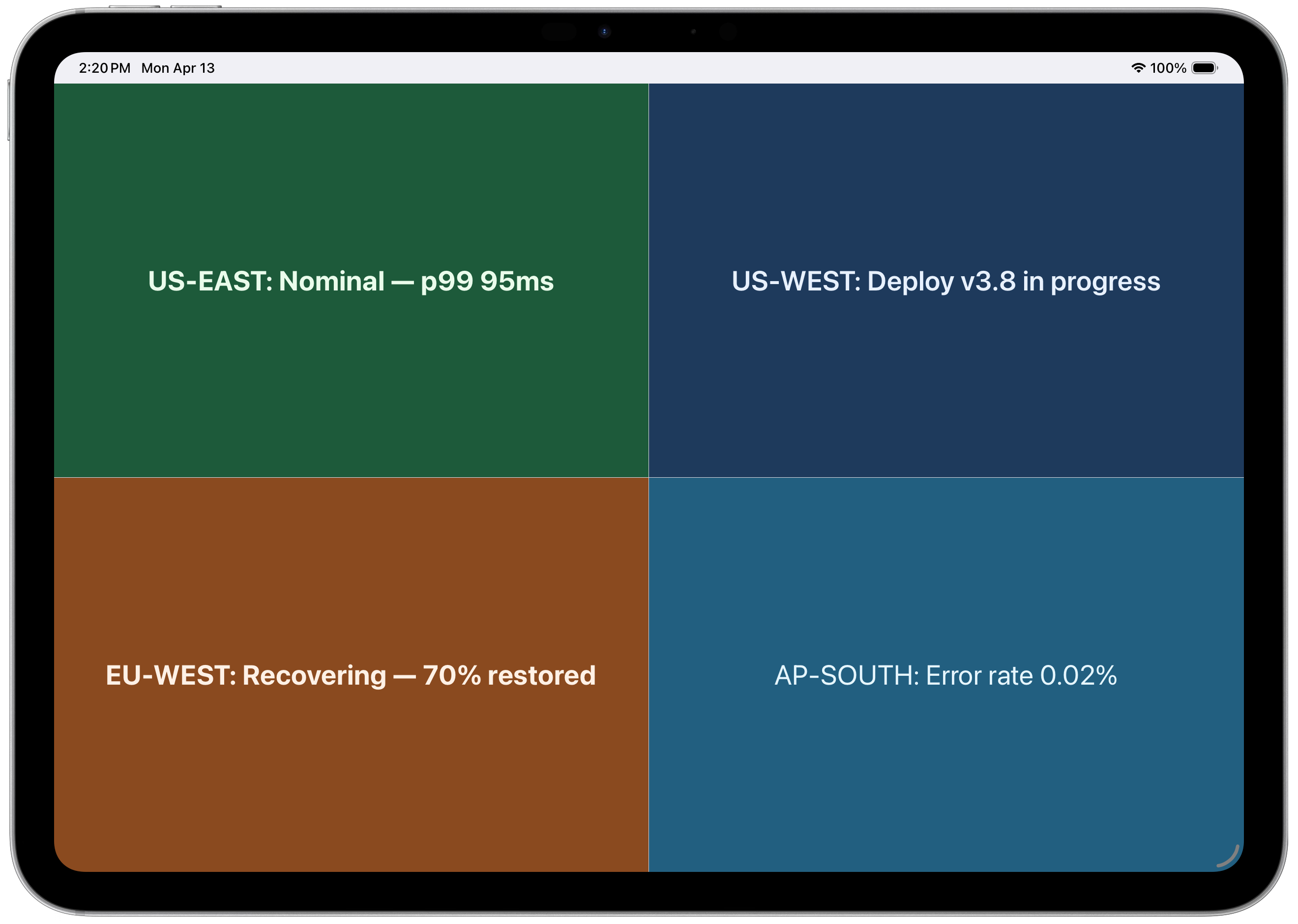
| 2×2 Grid | 3 |
4 | Four equal quadrants |
# Simple text (uses default board)
pushtodisplay send "Deploy succeeded"

# Target a specific board
pushtodisplay send -b <board-id> "Build passed"

# Styled text
pushtodisplay send -b <board-id> "ALERT" --size large --weight bold --color "#FF0000"

# Multiple text blocks (style flags apply to all blocks)
pushtodisplay send -b <board-id> "Build:" "passing" --color "#22C55E"

# Panel targeting
pushtodisplay send -b <board-id> --panel 2 "Right panel content"

# Full panel with layout options
pushtodisplay send -b <board-id> --panel 1 --full-panel --density compact --align-x center "Status OK"

# Per-block styling with JSON (repeatable)
pushtodisplay send -b <board-id> \
  --block '{"text": "API Health", "size": "large", "weight": "bold"}' \
  --block '{"text": "Uptime: 99.97%", "color": "#22C55E"}'

# Pipe full JSON from stdin
echo '{"boardId":"my-board","blocks":[{"text":"From pipe"}]}' | pushtodisplay send --stdin
If no -b flag is provided, the server uses the user's default board.
The three input modes — positional text arguments, --block JSON flags, and --stdin — are mutually exclusive. Do not combine them. When style flags are used with multiple positional text arguments, they apply to all generated blocks. For per-block styling, use --block JSON syntax instead.
Style flags: --size (small/medium/large), --weight (regular/semibold/bold), --color (#RRGGBB), --background (#RRGGBB)
Panel flags: --panel (1–4), --full-panel, --density (compact/standard/spacious), --align-x (start/center/end), --align-y (start/center/end)
pushtodisplay boards list                          # List all boards
pushtodisplay boards get <board-id>                # Get board details
pushtodisplay boards create -n "My Board"          # Create a board
pushtodisplay boards create -n "Dashboard" -l 3    # Create with 2×2 grid layout
pushtodisplay boards delete <board-id>             # Delete a board
pushtodisplay devices list # List active device-board streams
Add --json to any command for machine-readable output:
pushtodisplay boards list --json
pushtodisplay send -b <board-id> "test" --json
The MCP server exposes 8 tools. Start it with:
npx pushtodisplay mcp
pushtodisplay_send_updateSend content to a board. Returns { messageId, enqueuedAtUtc, userId }.
| Parameter | Type | Required | Description |
|---|---|---|---|
boardId |
string |
No | Board ID. Omit to use default board |
blocks |
array (min 1) |
Yes | Text blocks to display |
panelId |
int (1–4) |
No | Target panel number |
fullPanel |
boolean |
No | Use full panel mode |
density |
string |
No | compact, standard, spacious |
alignX |
string |
No | start, center, end |
alignY |
string |
No | start, center, end |
background |
string |
No | Background color #RRGGBB |
Each block in blocks:
| Field | Type | Required | Description |
|---|---|---|---|
text |
string |
Yes | Text content |
size |
string |
No | small, medium, large |
weight |
string |
No | regular, semibold, bold |
color |
string |
No | Text color #RRGGBB |
background |
string |
No | Block background #RRGGBB |
pushtodisplay_list_boardsList all boards owned by the authenticated user. No parameters.
pushtodisplay_get_boardGet details of a specific board.
| Parameter | Type | Required | Description |
|---|---|---|---|
boardId |
string |
Yes | Board ID |
Returns: { boardId, name, description, layoutId, createdAt, updatedAt, isDefault }
pushtodisplay_create_boardCreate a new board.
| Parameter | Type | Required | Description |
|---|---|---|---|
name |
string |
Yes | Board name |
description |
string |
No | Board description |
layoutId |
int |
No | Layout ID |
pushtodisplay_update_boardUpdate an existing board's name, description, or layout.
| Parameter | Type | Required | Description |
|---|---|---|---|
boardId |
string |
Yes | Board ID |
name |
string |
No | New name |
description |
string |
No | New description |
layoutId |
int |
No | New layout ID |
pushtodisplay_set_default_boardSet a board as the user's default. The default board is used when no board ID is specified in send_update.
| Parameter | Type | Required | Description |
|---|---|---|---|
boardId |
string |
Yes | Board ID to set as default |
pushtodisplay_delete_boardPermanently delete a board and all its data. Cannot be undone.
| Parameter | Type | Required | Description |
|---|---|---|---|
boardId |
string |
Yes | Board to delete |
pushtodisplay_list_devicesList active device-board stream connections. No parameters.
Returns array of { boardId, deviceId }.
Each block in the blocks array can have its own size, weight, color, and background. These apply only to that block.
Top-level fields apply to the entire update entry for the target panel:
fullPanel — expand content to fill the panel areadensity — line spacing (compact = tight, standard = normal, spacious = loose)alignX / alignY — content alignment within the panelbackground — background color for the entire entryTop-level background and blocks[].background are independent. Block background does not inherit from or override the entry background.
All colors must be hex #RRGGBB. They are validated and normalized to uppercase before display.
Send to different panels of a 2×2 grid board:
# Panel 1 — top left
pushtodisplay send -b <board-id> --panel 1 \
  --block '{"text":"API","size":"large","weight":"bold"}' \
  --block '{"text":"200 OK","color":"#22C55E"}'

# Panel 2 — top right
pushtodisplay send -b <board-id> --panel 2 \
  --block '{"text":"Database","size":"large","weight":"bold"}' \
  --block '{"text":"Connected","color":"#22C55E"}'

# Panel 3 — bottom left
pushtodisplay send -b <board-id> --panel 3 \
  --block '{"text":"Queue","size":"large","weight":"bold"}' \
  --block '{"text":"12 pending","color":"#F59E0B"}'

# Panel 4 — bottom right
pushtodisplay send -b <board-id> --panel 4 \
  --block '{"text":"Errors","size":"large","weight":"bold"}' \
  --block '{"text":"0","color":"#22C55E"}'
pushtodisplay send -b <board-id> --full-panel --density compact \
  --align-x center --align-y center --background "#7F1D1D" \
  --block '{"text":"🚨 INCIDENT","size":"large","weight":"bold","color":"#FECACA"}' \
  --block '{"text":"Payment gateway timeout — P1","color":"#FCA5A5"}'
pushtodisplay send -b <board-id> \
  --block '{"text":"deploy/prod #847","size":"large","weight":"bold"}' \
  --block '{"text":"✅ Build passed","color":"#22C55E"}' \
  --block '{"text":"✅ Tests passed (142/142)","color":"#22C55E"}' \
  --block '{"text":"🚀 Deployed to production","color":"#3B82F6"}'
Using MCP tools in sequence:
pushtodisplay_create_board → { name: "Deploy Status", layoutId: 2 } (Side by Side)pushtodisplay_set_default_board → { boardId: "<id from step 1>" }pushtodisplay_send_update → { blocks: [{ text: "Ready", size: "large" }] }| Status | Meaning |
|---|---|
400 |
Invalid request (bad fields, malformed JSON) |
401 |
Missing or invalid authentication |
403 |
No active subscription |
404 |
Board not found or no active devices |
409 |
Quota exceeded (boards or monthly messages) |
429 |
Rate limit exceeded |
| Quota | Sandbox (free) | Go ($9.99/mo) | Pro ($19.99/mo) | Business ($49.99/mo) |
|---|---|---|---|---|
| Boards | 1 | 10 | 50 | 100 |
| Active streams | 2 | 3 | 10 | 50 |
| Max message size | 4 KB | 8 KB | 32 KB | 128 KB |
| Monthly messages | 1,000 | 50,000 | 200,000 | 1,000,000 |
| Rate (msg/s) | 1 | 1 | 1 | 2 |
| Burst | 2 | 3 | 5 | 20 |
Devices are unlimited across all tiers. A board is a named display destination — not a physical device.
Rate limiting is per-user, token-bucket based. Monthly message count resets on the billing cycle.
Command-line interface and MCP server for Push To Display — send real-time updates to display boards from your terminal or AI agents.
Run directly with npx (no install needed):
npx pushtodisplay --help
Or install globally:
npm install -g pushtodisplay
Requires Node.js 18+.
# Log in (opens browser)
pushtodisplay auth login

# Send an update (uses your default board)
pushtodisplay send "Hello, Display!"

# Send to a specific board
pushtodisplay send -b <board-id> "Deploy completed"

# List your boards
pushtodisplay boards list
Log in with your Push To Display account — the same account you use in the mobile app.
pushtodisplay auth login
Opens your browser. Sign in and the CLI receives your credentials automatically.
For machines without a browser — SSH sessions, containers, or remote servers:
pushtodisplay auth login --device-code
The CLI prints a URL and a one-time code. Open the URL on any device, enter the code, and approve the login.
Credentials are stored in your OS keychain (macOS Keychain, Linux libsecret, Windows Credential Manager). Falls back to ~/.config/pushtodisplay/ if the keychain is unavailable.
# Check auth status
pushtodisplay auth status

# Log out (clear stored credentials)
pushtodisplay auth logout
sendSend a display update to a board.
# Simple text
pushtodisplay send -b my-board-id "Deploy succeeded"

# Styled text
pushtodisplay send -b my-board-id "Status" --size large --weight bold --color "#00FF00"

# Multiple blocks
pushtodisplay send -b my-board-id "Build:" "passing" --color "#22C55E"

# Panel targeting with layout options
pushtodisplay send -b my-board-id --panel 2 "Right panel content"
pushtodisplay send -b my-board-id --panel 1 --full-panel --density compact --align-x center "Alert"

# Per-block styling with JSON (repeatable)
pushtodisplay send -b my-board-id \
  --block '{"text": "API Health", "size": "large", "weight": "bold"}' \
  --block '{"text": "Uptime: 99.97%", "color": "#22C55E"}'

# Pipe a full JSON payload from stdin
echo '{"boardId":"my-board-id","blocks":[{"text":"From pipe"}]}' | pushtodisplay send --stdin
If no -b flag is provided, the server uses your default board.
| Flag | Values | Description |
|---|---|---|
-s, --size |
small, medium, large |
Text size |
-w, --weight |
regular, semibold, bold |
Font weight |
-c, --color |
Hex color (#RRGGBB) |
Text color |
--background |
Hex color (#RRGGBB) |
Background color |
| Flag | Values | Description |
|---|---|---|
-p, --panel |
1–4 |
Target panel number |
--full-panel |
— | Fill the entire panel area |
--density |
compact, standard, spacious |
Content spacing |
--align-x |
start, center, end |
Horizontal alignment |
--align-y |
start, center, end |
Vertical alignment |
| Flag | Description |
|---|---|
-b, --board |
Board ID |
--block <json> |
Styled block as JSON (repeatable) |
--stdin |
Read full JSON request from stdin |
boardspushtodisplay boards list # List all boards
pushtodisplay boards get <id> # Get board details
pushtodisplay boards create -n "Name" # Create a board
pushtodisplay boards create -n "Dash" -l 4 # Create with a layout
pushtodisplay boards delete <id> # Delete a board
Create options:
| Flag | Description |
|---|---|
-n, --name |
Board name (required) |
-d, --description |
Board description |
-l, --layout |
Layout ID |
devicespushtodisplay devices list # List active device-board streams
configpushtodisplay config # Show current configuration
pushtodisplay config show # Same as above
Add --json to any command for machine-readable output:
pushtodisplay boards list --json
pushtodisplay send -b my-board "test" --json
Configuration is resolved in order: environment variables → config file → defaults.
| Env var | Description | Default |
|---|---|---|
PTD_API_URL |
API endpoint | https://api.pushtodisplay.com |
PTD_SERVICE_URL |
Service endpoint | https://services.pushtodisplay.com |
PTD_IDP_URL |
Identity provider | https://idp.pushtodisplay.com |
PTD_CONFIG_DIR |
Config directory | ~/.config/pushtodisplay |
The CLI includes a built-in Model Context Protocol server, giving AI agents (Claude, Cursor, VS Code Copilot, and others) direct access to your display boards.
The MCP server inherits your CLI session — if you've run pushtodisplay auth login, it authenticates automatically.
claude mcp add pushtodisplay -- npx pushtodisplay mcp
Add to ~/Library/Application Support/Claude/claude_desktop_config.json (macOS) or %APPDATA%\Claude\claude_desktop_config.json (Windows):
{
  "mcpServers": {
    "pushtodisplay": {
      "command": "npx",
      "args": ["pushtodisplay", "mcp"]
    }
  }
}
Open Settings → MCP Servers → Add Server, or edit .cursor/mcp.json:
{
  "mcpServers": {
    "pushtodisplay": {
      "command": "npx",
      "args": ["pushtodisplay", "mcp"]
    }
  }
}
Add to .vscode/mcp.json:
{
  "servers": {
    "pushtodisplay": {
      "command": "npx",
      "args": ["pushtodisplay", "mcp"]
    }
  }
}
Any MCP client that supports stdio transport can use Push To Display. The server command is:
npx pushtodisplay mcp
| Tool | Description |
|---|---|
pushtodisplay_send_update |
Send content to a board |
pushtodisplay_list_boards |
List all boards |
pushtodisplay_get_board |
Get details of a board |
pushtodisplay_create_board |
Create a new board |
pushtodisplay_update_board |
Update a board's name, description, or layout |
pushtodisplay_set_default_board |
Set a board as your default |
pushtodisplay_delete_board |
Delete a board permanently |
pushtodisplay_list_devices |
List active device connections |
| Command | Description |
|---|---|
auth login |
Log in (browser or device code) |
auth logout |
Remove stored credentials |
auth status |
Show current auth status |
send [text...] |
Send a display update |
boards list |
List your boards |
boards get <id> |
Get board details |
boards create |
Create a new board |
boards delete <id> |
Delete a board |
devices list |
List active device connections |
config |
Show current configuration |
mcp |
Start the MCP server |
For CI/CD pipelines and scripts where interactive login isn't available, you can authenticate with an API key. Create one from the mobile app or the web portal. API keys start with pt_.
# Via environment variable
export PTD_API_KEY=pt_your_key_here
pushtodisplay send "From CI"

# Or store in keychain
pushtodisplay auth login --api-key pt_your_key_here
Note: API key auth only supports the
sendcommand. Useauth loginfor full access to boards, devices, and config management.
4-panel layout — regional status at a glance
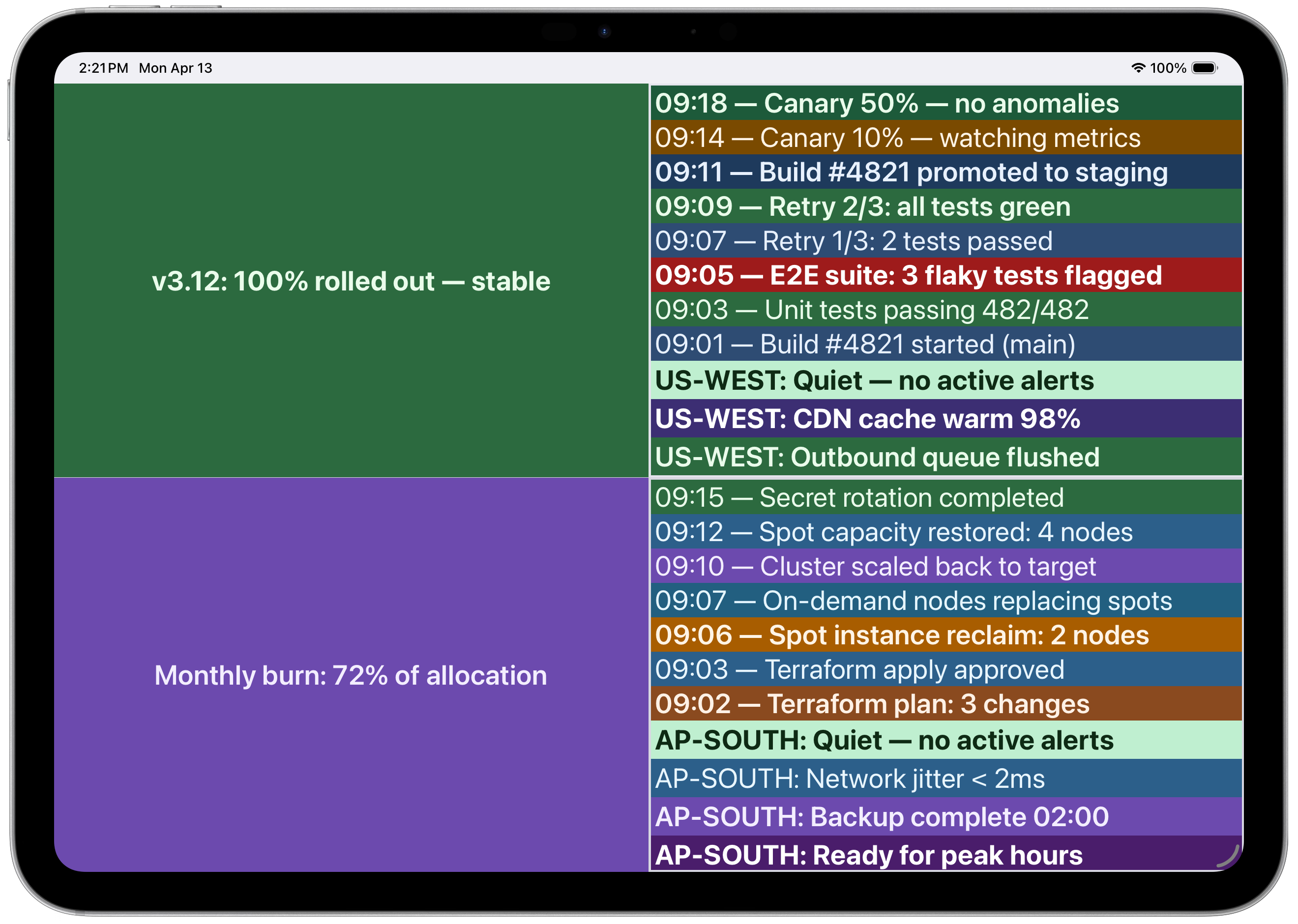 Multi-panel with CI/CD pipeline and infrastructure logs
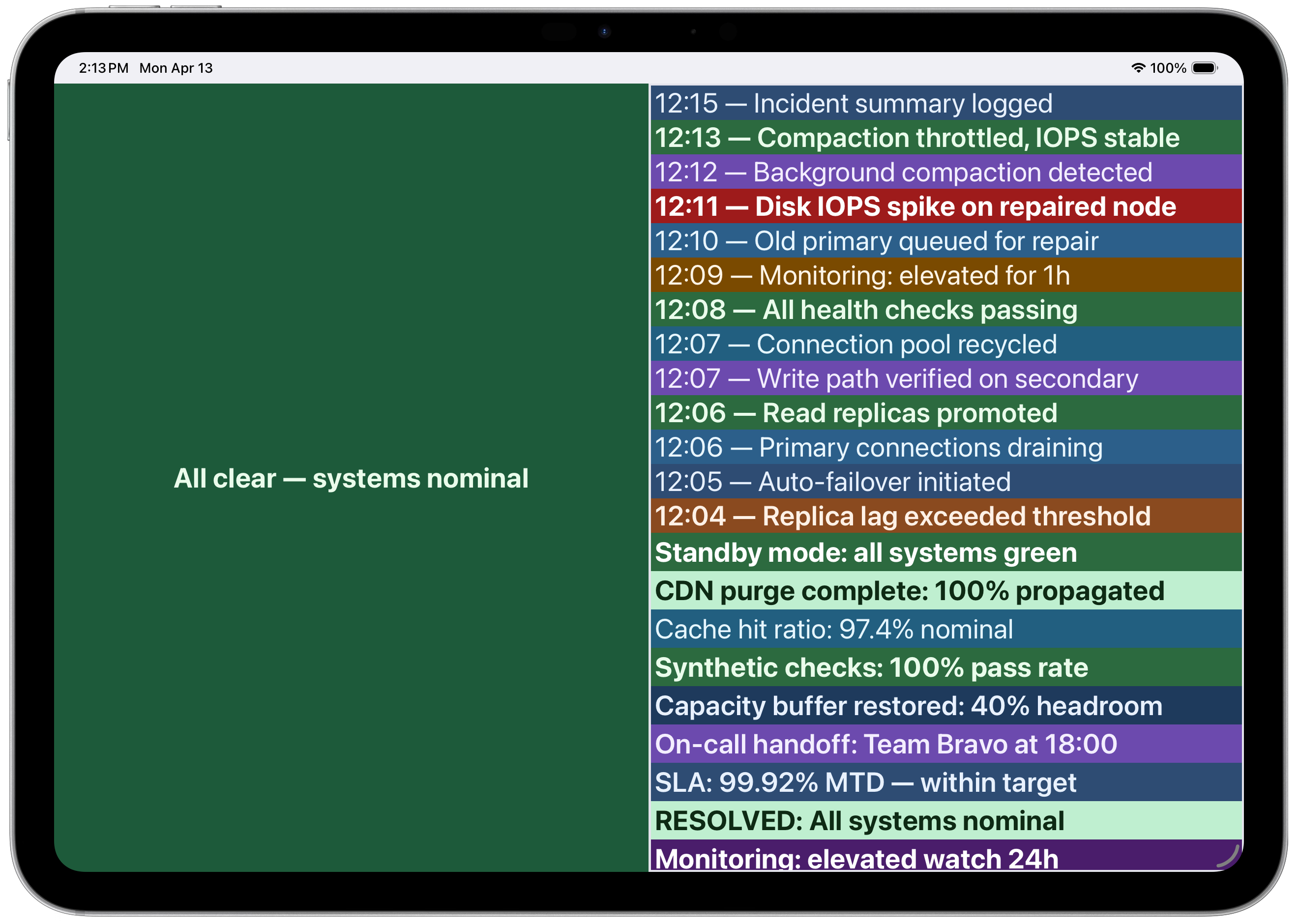 Incident timeline with color-coded severity