
🪐🔧 Jupyter MCP Server
An MCP server developed for AI to connect and manage Jupyter Notebooks in real-time — and scale your Code Sandbox from local to the cloud (Datalayer, Kaggle, Google Colab, Modal, Daytona, E2B, CoreWeave, Cloudflare...)
Developed by Datalayer - Join our Discord





📖 Documentation · 🔧 Tools · 💬 Community

No process to run. Datalayer now hosts this server for you at
https://mcp.datalayer.run/mcp — one endpoint for every agent and every notebook.
Sign in from your browser, approve what the agent may do, and your work keeps running
on the server after the agent disconnects.
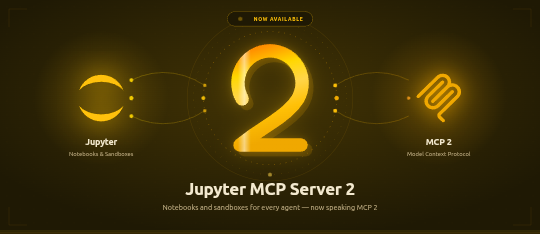

One command to connect Claude Code, with /datalayer:notebook, /datalayer:run and
/datalayer:status on top:
/plugin marketplace add datalayer/jupyter-mcp-server
/plugin install datalayer
→ Datalayer plugin for Claude Code
Free and open source, BSD 3-Clause — point it at any Jupyter you already run, local or JupyterHub, no account needed.
Built and maintained by Datalayer, where the same server drives always-on Notebooks with GPU Code Sandboxes and durable execution — so your agent keeps working on your data when your laptop does not.


No token to copy and paste. An agent that meets this server unauthenticated is told where to authenticate, opens your browser, and you sign in to Datalayer as yourself. The agent never sees your password — it receives a token scoped to what you approved, and you can disconnect one agent without touching the others.
What each agent may do is two separate decisions: the scopes you approve
(notebooks:read, notebooks:write, code:execute, data:read) say what kind of
operation it may perform, and your own Datalayer permissions still say which notebooks it
may touch. An agent can never reach a notebook you cannot.
Personal access tokens keep working, and remain the simpler path for a CLI or a script. → OAuth and identity

Pin code-sandboxes to match your jupyter-mcp-server. The sandbox variant
jupyter was renamed to jupyter-server in code-sandboxes 1.1.1, and the two packages
have to agree on the name.
Your jupyter-mcp-server |
Install |
|---|---|
| >= 1.5.0 | code-sandboxes >= 1.1.1 |
| < 1.5.0 | code-sandboxes <= 1.0.9 |
# On 1.5.0 or later
pip install "jupyter-mcp-server>=1.5.0" "code-sandboxes>=1.1.1"

# Staying on an earlier jupyter-mcp-server
pip install "jupyter-mcp-server<1.5.0" "code-sandboxes<=1.0.9"
An older server with a newer code-sandboxes installs cleanly and then fails on the
first execution with Unknown sandbox variant: jupyter.
→ Release notes

Jupyter MCP Server 2 runs on the MCP Python SDK 2
(mcp>=2,<3), the SDK's first major release. Nothing changes in how you start or
configure the server, in the tools, or for the MCP clients connecting to it — the protocol
is negotiated with each client as before. What changes is the Python environment:
Your jupyter-mcp-server |
mcp SDK |
|---|---|
| >= 2.0.0 | mcp >= 2 |
| < 2.0.0 | mcp < 2 |
Both are pinned in the package, so pip sorts it out; an environment holding another
package that still pins mcp<2 has to stay on jupyter-mcp-server<2 until that package
moves. Writing an extension or a custom token verifier against the SDK? See the
release notes for the renamed
imports.

--provider is now --document-provider (env var PROVIDER → DOCUMENT_PROVIDER).
It only ever chose where the notebook documents live — jupyter for the collaboration
API of a Jupyter Server, datalayer for the Datalayer spacer — while the old name and its
help text suggested it also chose where code runs. Execution is picked separately, with
--sandbox-variant (jupyter-server, datalayer, daytona, e2b, coreweave,
cloudflare, kaggle, google-colab, monty, modal).
Nothing breaks in v1.3.2: --provider is still accepted as an alias, PROVIDER is still
read, and a /connect payload carrying "provider" is still understood. Move to the new
names when convenient — the old ones are deprecated, not removed.
📖 Table of Contents
🚀 Key Features
- ⚡ Real-time control: Instantly view notebook changes as they happen.
- 🔁 Smart execution: Automatically adjusts when a cell run fails thanks to cell output feedback.
- 🧠 Context-aware: Understands the entire notebook context for more relevant interactions.
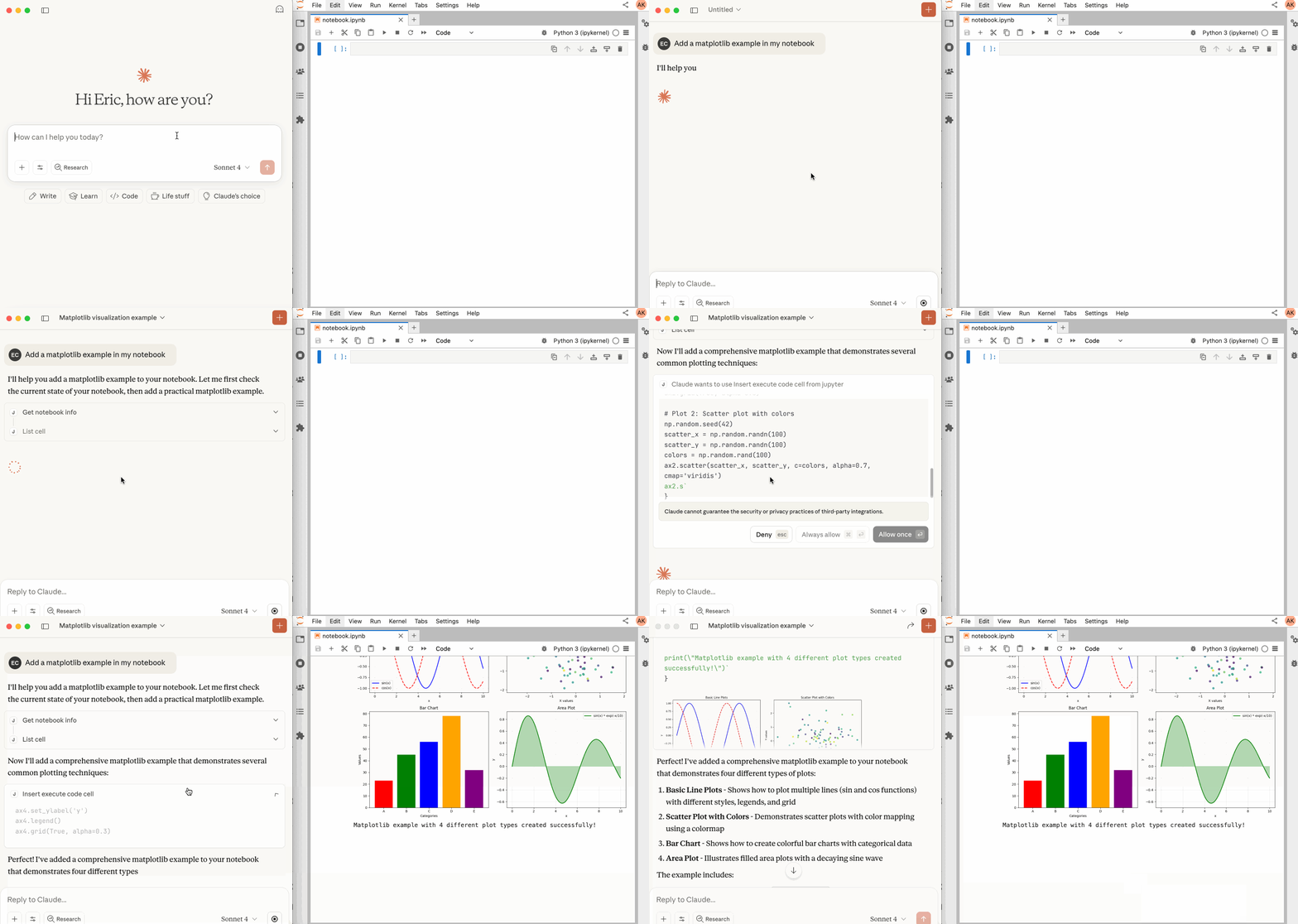
- 📊 Multimodal support: Support different output types, including images, plots, and text.
- 📚 Multi-notebook support: Seamlessly switch between multiple notebooks.
- 🎨 JupyterLab integration: Enhanced UI integration like automatic notebook opening.
- 🤝 MCP-compatible: Works with any MCP client, such as Claude Desktop, Cursor, Windsurf, and more.
- 🔍 Observability: Built-in hook system with OpenTelemetry integration for tracing tool calls and kernel executions.
Compatible with any Jupyter deployment (local, JupyterHub, ...) and with Datalayer hosted Notebooks, where the Code Sandboxes come with GPUs and the execution survives a disconnect.
🔧 MCP Overview
🔧 Tools Overview
Every tool, with its parameters, schema and return value, is generated from a live snapshot of the running server and published at jupyter-mcp-server.datalayer.tech/mcp — so it is never out of step with the code, which a table copied into this file would be.
They fall into four groups:
- Server and code sandbox — browse the Jupyter file system, list kernels, connect to a server at runtime, and launch, select and terminate code sandboxes.
- Notebooks — open, create and switch between notebooks, list them, read one, restart its kernel, relea